
Roles
Manage roles and permissions in the Platform UI.
Role Management
The Roles section in the Platform UI allows you to create and manage custom roles with specific permission sets. Roles determine what actions and areas of the platform users can access, enabling you to implement fine-grained access control across your organization.
Overview
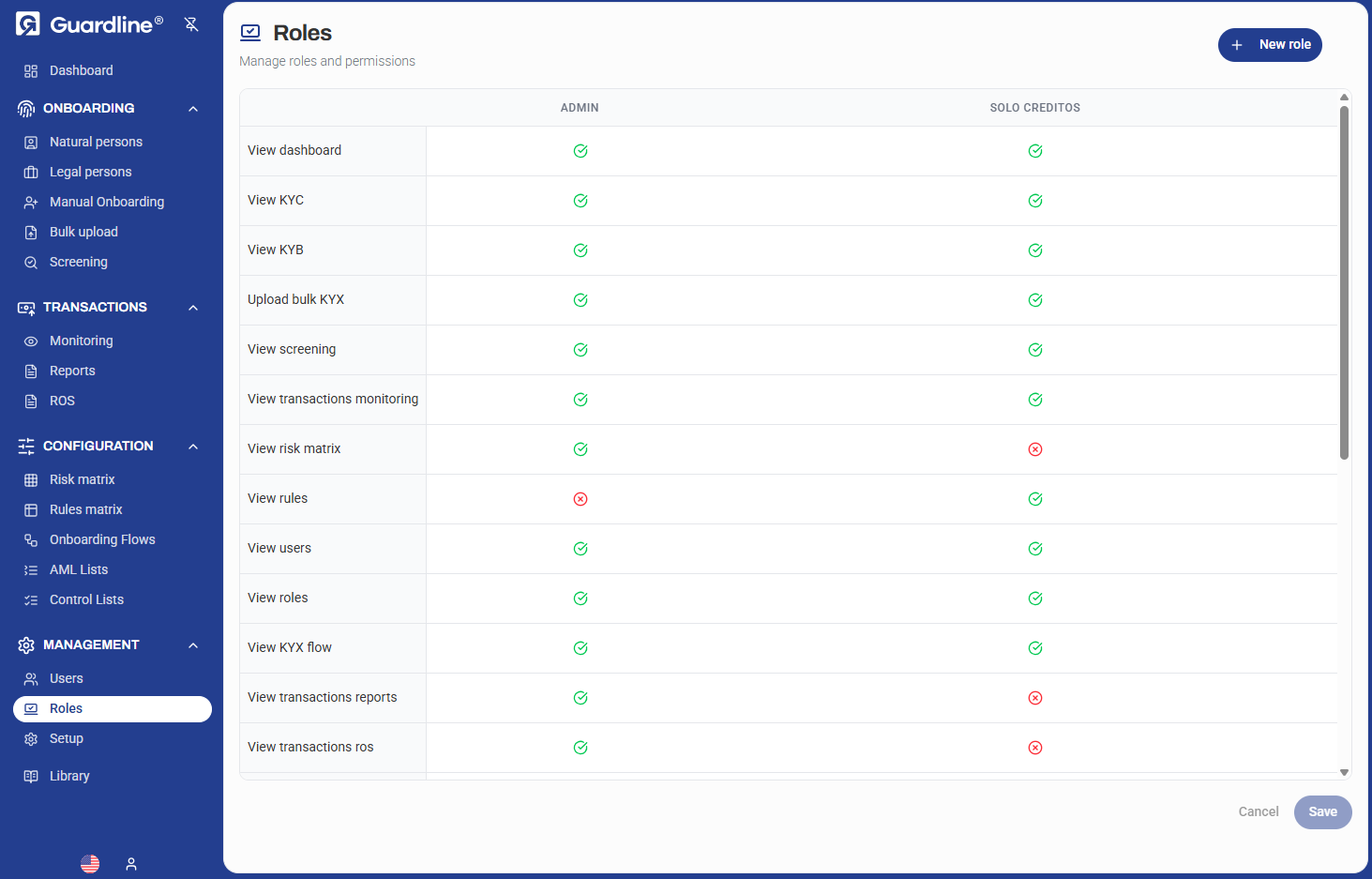
The Roles dashboard displays a permissions matrix showing all available roles and their assigned permissions. Use this view to quickly understand access levels across different roles and ensure proper security configuration.
Permission Types
The platform provides granular permissions across different functional areas:
Dashboard & Monitoring
- View dashboard — Access to main dashboard
- View transactions monitoring — Monitor transaction activity
- View risk matrix — Access risk assessment tools
Onboarding
- View KYC — Access individual (KYC) onboarding data
- View KYB — Access business (KYB) onboarding data
- Upload bulk onboarding — Bulk upload capabilities for onboarding
- View onboarding flow — Access to flow configuration
Compliance Operations
- View screening — Access screening results
- View rules — View compliance rules configuration
Transaction Management
- View transactions reports — Access transaction reporting
- View transactions ros — Transaction return on screening
User Management
- View users — View user accounts
- View roles — View role configuration
Creating a New Role
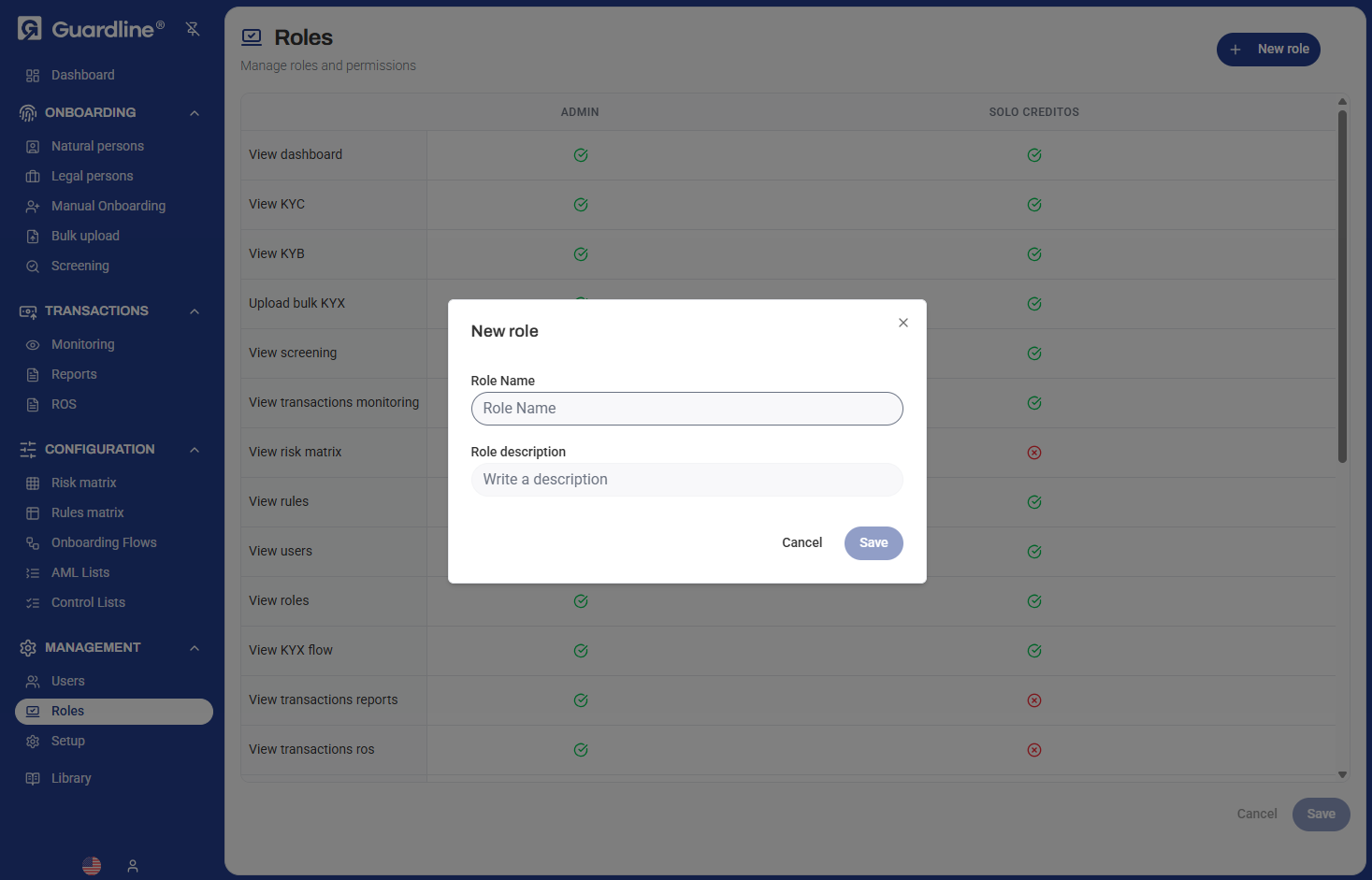
To create a new role:
- Navigate to Management > Roles
- Click the New role button in the top right
- Enter a Role Name (e.g., "Analyst", "Compliance Officer", "Auditor")
- Provide a Role description explaining the role's purpose
- Select the appropriate permissions by checking the boxes in the permissions matrix
- Click Save to create the role
Permission Matrix
The permissions matrix uses visual indicators:
- ✅ Green checkmark — Permission granted
- ❌ Red X — Permission denied
You can configure permissions individually for each role, allowing you to create custom access levels that match your organizational structure.
Common Role Patterns
Administrator
Full access to all platform features including:
- All dashboard and monitoring views
- Complete onboarding access (KYC/KYB)
- Configuration and setup
- User and role management
- All transaction and reporting capabilities
Compliance Officer
Focused on review and compliance operations:
- View dashboard
- View KYC and KYB data
- Access screening results
- View transactions monitoring
- Generate reports
Analyst
Read-only access for analysis:
- View dashboard
- View KYC and KYB data
- Access risk matrix
- View reports
- Limited configuration access
Editing Roles
To modify an existing role:
- Locate the role in the permissions matrix
- Toggle permissions on or off by clicking the checkboxes
- Click Save to apply changes
Changes to role permissions take effect immediately for all users assigned to that role.
Best Practices
- Principle of Least Privilege — Grant only the permissions necessary for users to perform their job functions
- Role Naming — Use clear, descriptive names that indicate the role's purpose (e.g., "KYC_Reviewer", "Senior_Analyst")
- Regular Review — Periodically audit role permissions to ensure they remain appropriate
- Documentation — Use the role description field to document the intended use and scope of each role
- Testing — Test new roles with a test account before assigning to production users
- Separation of Duties — Avoid granting conflicting permissions that could create compliance issues
Role Assignment
Once roles are created, they can be assigned to users in the Users section. Users can have multiple roles, and their effective permissions will be the union of all assigned roles.
Security Considerations
- Permission Changes — Changes to role permissions apply immediately to all users with that role
- Access Audit — Track which users have access to sensitive features through role assignments
- Role Dependencies — Some permissions may require others to function properly (e.g., viewing reports requires dashboard access)
- Default Roles — Be cautious when modifying built-in roles that may be used by system processes