
Users
Manage user accounts and role assignments in the Platform UI.
User Management
The Users section in the Platform UI provides comprehensive tools for managing user accounts, role assignments, and access control. This is where administrators create user accounts, assign roles, and maintain the security of the platform.
Overview
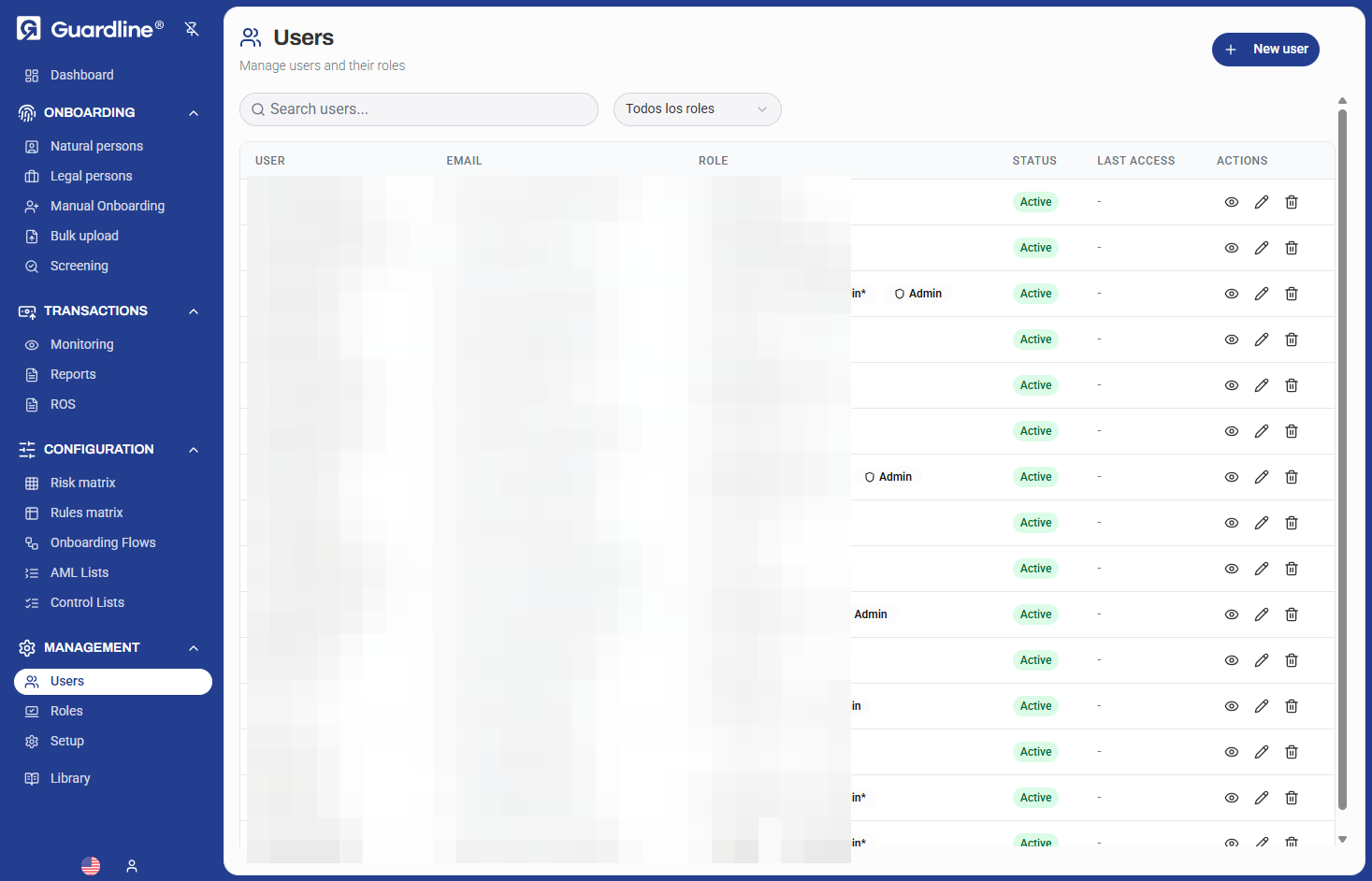
The Users dashboard displays all user accounts in your organization with their associated information, roles, and current status. Use this view to quickly find users, review their access levels, and perform account management tasks.
User List View
Search and Filtering
Find specific users quickly using:
- Text search — Search by name, email, or user ID
- Role filter — Filter by specific roles (e.g., Admin, Compliance Officer)
- Status filter — View active or inactive users
List Columns
The user list displays the following information:
| Column | Description |
|---|---|
| USER | User's full name |
| User's email address | |
| ROLE | Assigned roles (can have multiple) |
| STATUS | Account status (Active/Inactive) |
| LAST ACCESS | Last login date and time |
| ACTIONS | Quick action buttons |
Quick Actions
Each user row provides three action buttons:
- 👁️ View — View user details
- ✏️ Edit — Modify user information and roles
- 🗑️ Delete — Remove user account
Creating a New User
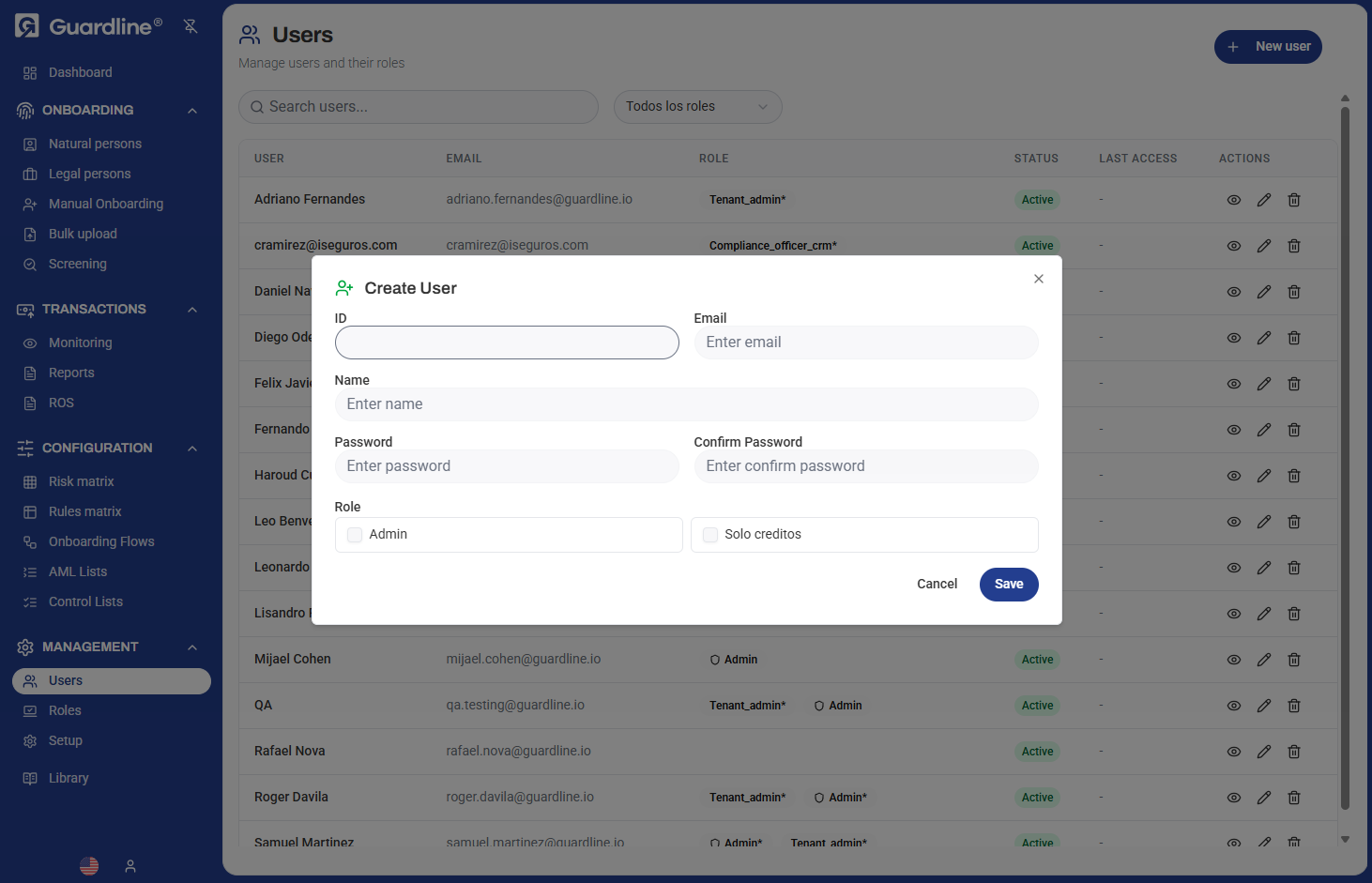
To create a new user account:
- Navigate to Management > Users
- Click the New user button in the top right
- Fill in the required information:
- ID — Unique identifier (auto-generated)
- Email — User's email address (will be used for login)
- Name — User's full name
- Password — Initial password for the account
- Confirm Password — Re-enter password to confirm
- Role — Select one or more roles to assign
- Click Save to create the account
Password Requirements
When creating user accounts, ensure passwords meet security requirements:
- Minimum length (typically 8+ characters)
- Mix of uppercase and lowercase letters
- Include numbers
- Include special characters
The user will receive their login credentials via the specified email address.
Editing User Information
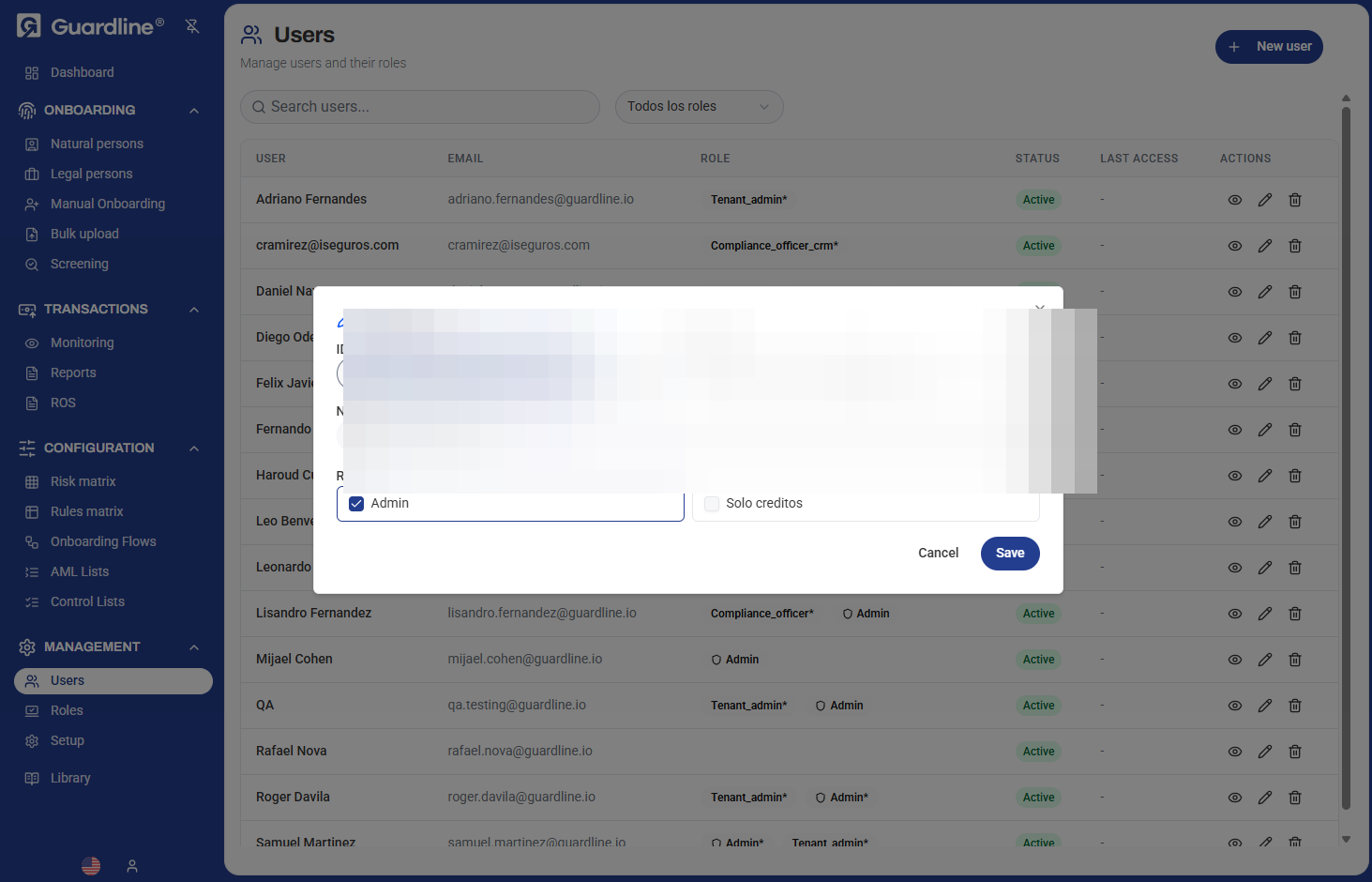
To modify an existing user:
- Click the Edit (pencil) icon next to the user
- Update any of the following:
- Name — User's display name
- Email — Email address
- Role — Add or remove role assignments
- Click Save to apply changes
Note: The user ID is automatically generated and cannot be modified.
Role Assignments
Users can be assigned multiple roles simultaneously. When a user has multiple roles, they receive the combined permissions of all assigned roles.
Common Role Combinations
Senior Compliance Officer:
- Admin (for configuration access)
- Compliance_officer_crm (for case management)
Analyst with Review Rights:
- Compliance_officer (for review capabilities)
- Solo creditos (for specific feature access)
User Status Management
Active Status
- User can log in and access the platform
- All assigned permissions are in effect
- Appears in user lists and reports
Inactive Status
To deactivate a user:
- Edit the user account
- Change status to Inactive
- Save changes
Inactive users:
- Cannot log in to the platform
- Retain their account data for audit purposes
- Can be reactivated if needed
Deleting Users
To permanently remove a user:
- Click the Delete (trash) icon next to the user
- Confirm the deletion
Warning: Deleting a user is permanent and cannot be undone. Consider deactivating users instead if you may need to restore access later.
Last Access Tracking
The LAST ACCESS column shows when each user last logged into the platform. This helps you:
- Identify inactive accounts
- Monitor user activity
- Detect unusual access patterns
- Audit user engagement
If a user shows "—" in the Last Access column, they have never logged in.
User Account Security
Password Management
Initial Setup:
- Administrators set initial passwords when creating accounts
- Users should change their password on first login
Password Resets:
- Users can request password resets via the login page
- Administrators can reset passwords by editing the user account
Session Management
User sessions are managed automatically:
- Sessions expire after a period of inactivity
- Users must log in again after session expiration
- Concurrent sessions may be limited based on configuration
Bulk Operations
For managing multiple users efficiently:
- Export User List — Download user data for reporting or analysis
- Role-based Selection — Use role filters to perform actions on groups of users
- Status Updates — Activate or deactivate multiple users
Best Practices
- Unique Email Addresses — Each user must have a unique email address
- Role Assignment Review — Regularly audit user role assignments to ensure appropriate access
- Inactive Account Cleanup — Periodically review and deactivate accounts that haven't been accessed recently
- Least Privilege — Assign only the roles necessary for each user's job function
- Onboarding Process — Have a standard process for creating and provisioning new user accounts
- Offboarding Process — Immediately deactivate or delete accounts when users leave the organization
- Naming Conventions — Use consistent naming formats (e.g., "First Last" or "Last, First")
- Email Verification — Verify email addresses are correct before creating accounts
Troubleshooting
User Cannot Log In
Check the following:
- Account status is Active
- Email address is correct
- Password is correct (offer password reset if needed)
- User has at least one role assigned
- Roles have appropriate permissions
Missing Permissions
If a user reports missing functionality:
- Check their assigned roles
- Verify role permissions in the Roles section
- Ensure permissions are properly configured
Duplicate Email Error
If you receive a duplicate email error:
- Search for existing users with that email
- Either update the existing account or use a different email
Security & Compliance
- Access Logs — All user actions are logged for audit purposes
- Role Changes — Changes to user roles are tracked with timestamps
- Failed Login Attempts — Monitored to detect suspicious activity
- Account Lockout — Accounts may be locked after multiple failed login attempts
- Data Privacy — User information is stored securely and access is restricted to authorized administrators